
Step 1: Go to the Affinity download webpage.
Go to the Affinity download page at www.affinity.studio/get-affinity.
Step 2: Sign into Canva.
You need a free Canva account to sign up for Affinity.
Click the “Sign up to download” button.
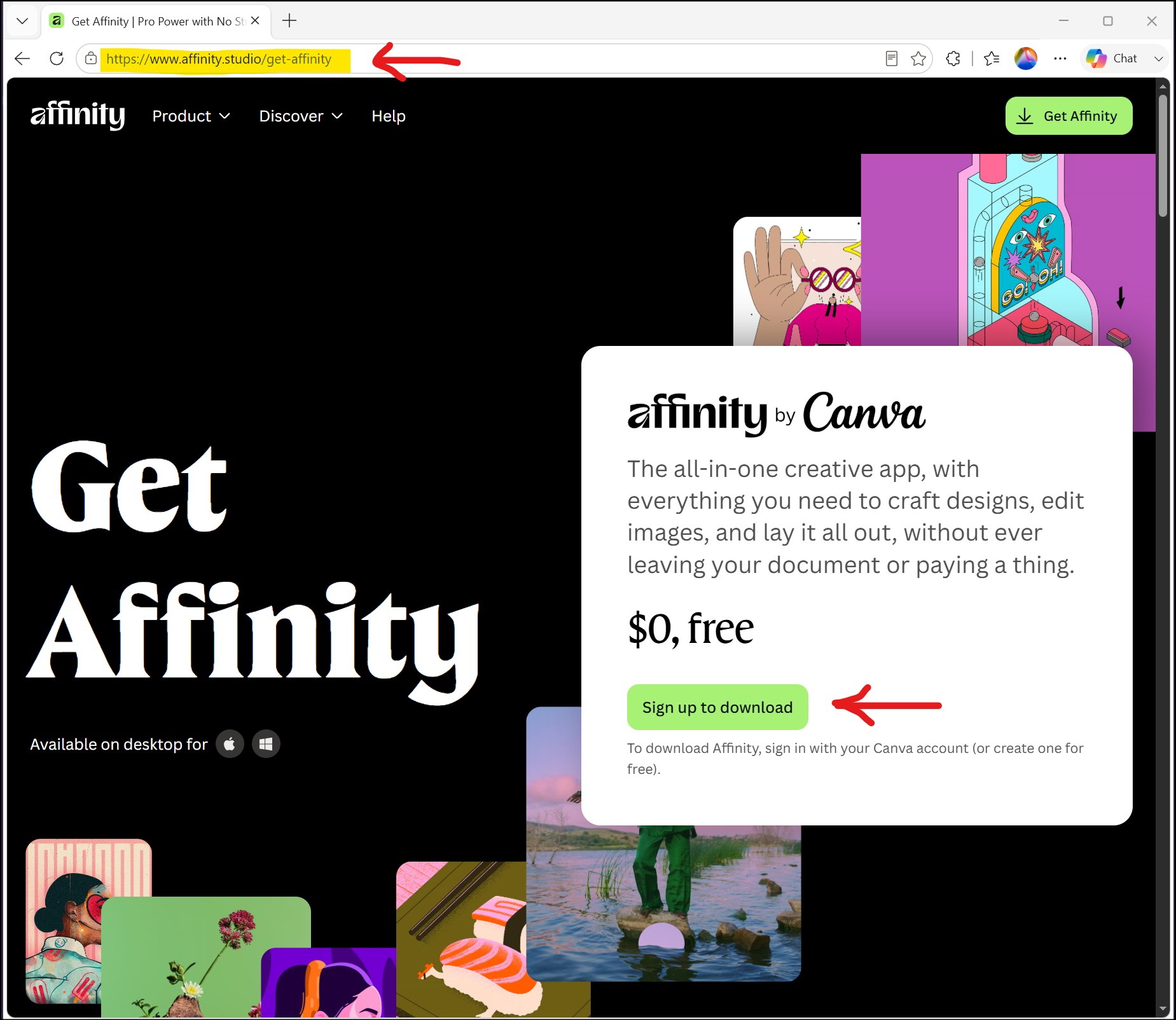
This will redirect you to the Canva authentication page.
The Affinity software is completely free to download and use.
You use the same account/email for both an Affinity account and a Canva account.
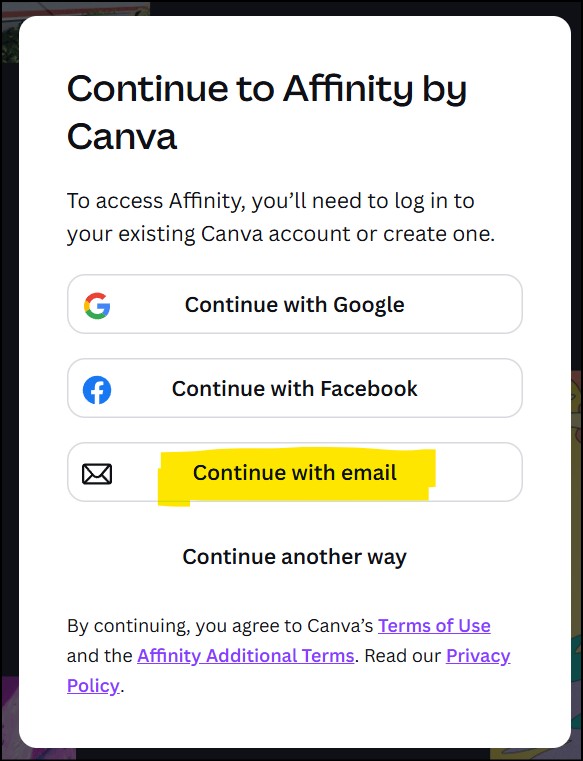
If you don’t already have a Canva account you will be asked for your email to create one. A free Canva account is fine. We recommend choosing “Continue with email”.
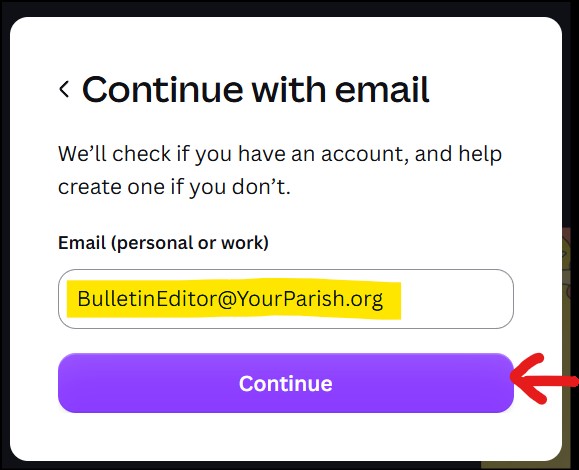
Enter your email. This would normally be the email you use for parish business. Then click “Continue”.
Enter your name, then click “Continue”.

Canva will send an email to the email address you entered.
Copy the code from the email and enter it in the window under “Code”.
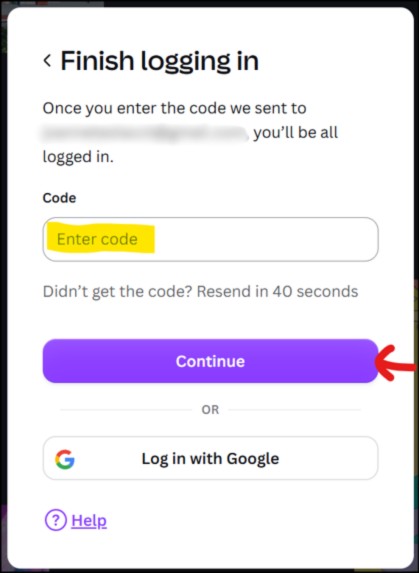
Make sure to check your spam/junk folder if you don’t see the verification email within a few minutes.
You can resend the verification code if needed using the “Resend in X seconds” option.
If you already have a Canva account, it will ask you if you’d like to use that account or continue with another account. Pick which account you would like to use or create a new one.
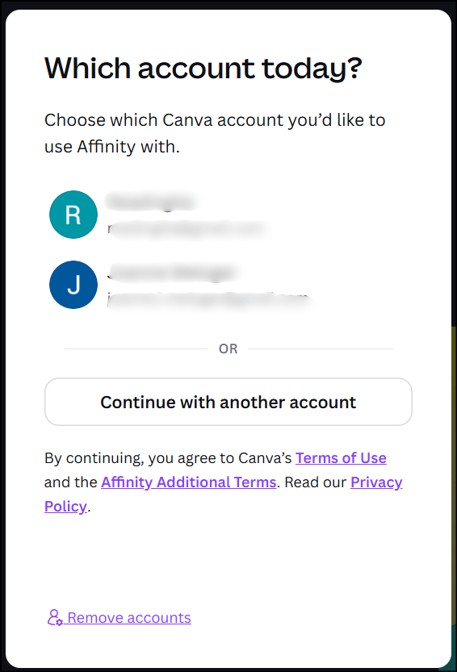
After completing email verification, you’ll be able to download Affinity for macOS or Windows.
Step 3: Download Affinity
You will now see the Download Affinity screen
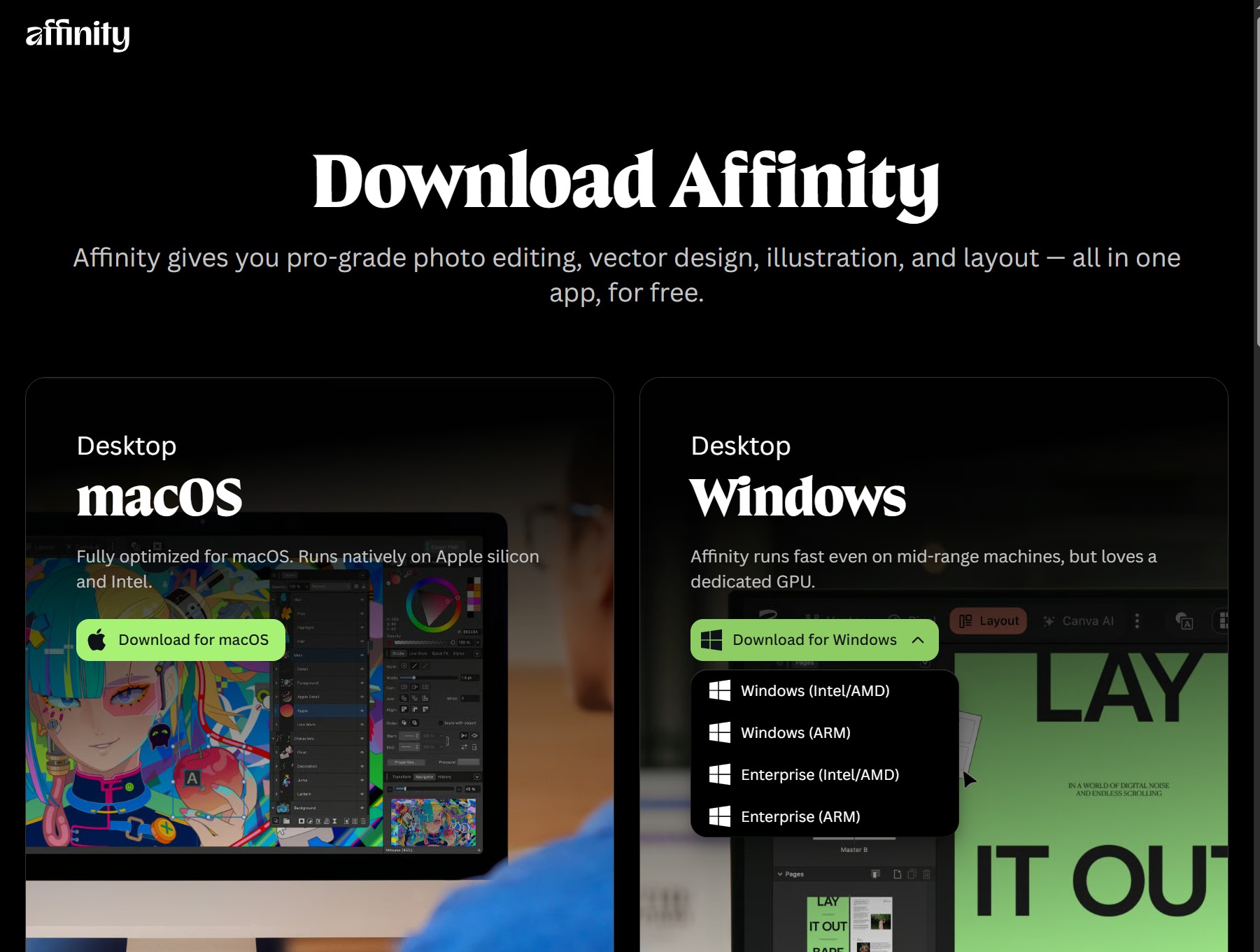
For Apple computers, use Affinity Desktop for Mac OS, click “Download for MacOS”
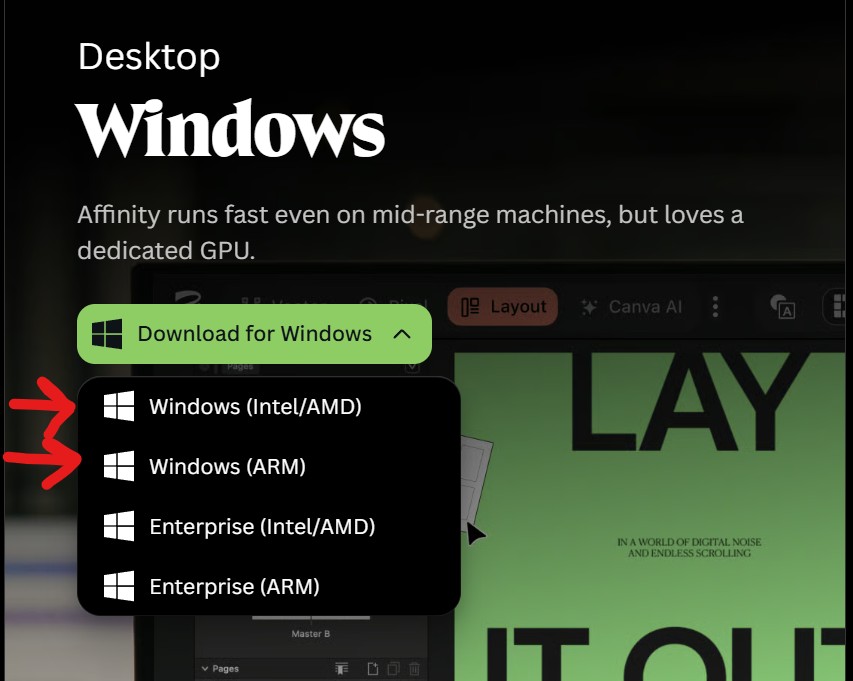
For Windows computers, use Affinity Desktop Windows. There is a drop-down menu with 4 choices. You will need to know what processor your Windows machine has.
To see what processor (Intel, AMD or ARM) your Windows computer has:
Go to the Windows Start Menu search bar.
Type “About”.
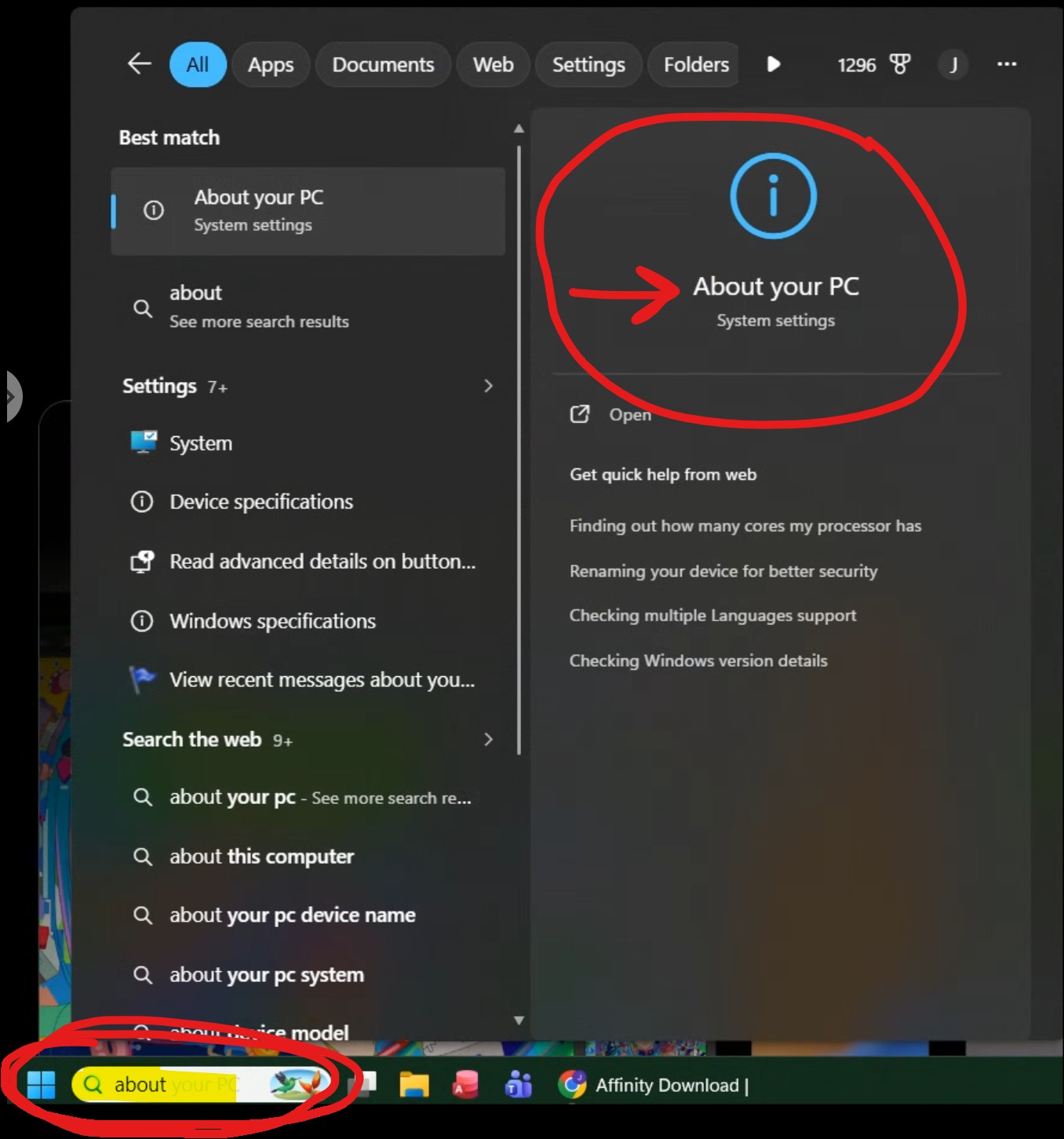
Select the “About your PC” system settings. An “About” window will open. Look for the “Processor” info in one of the 4 boxes near the top of the window. The processor is also listed under Device Specifications.
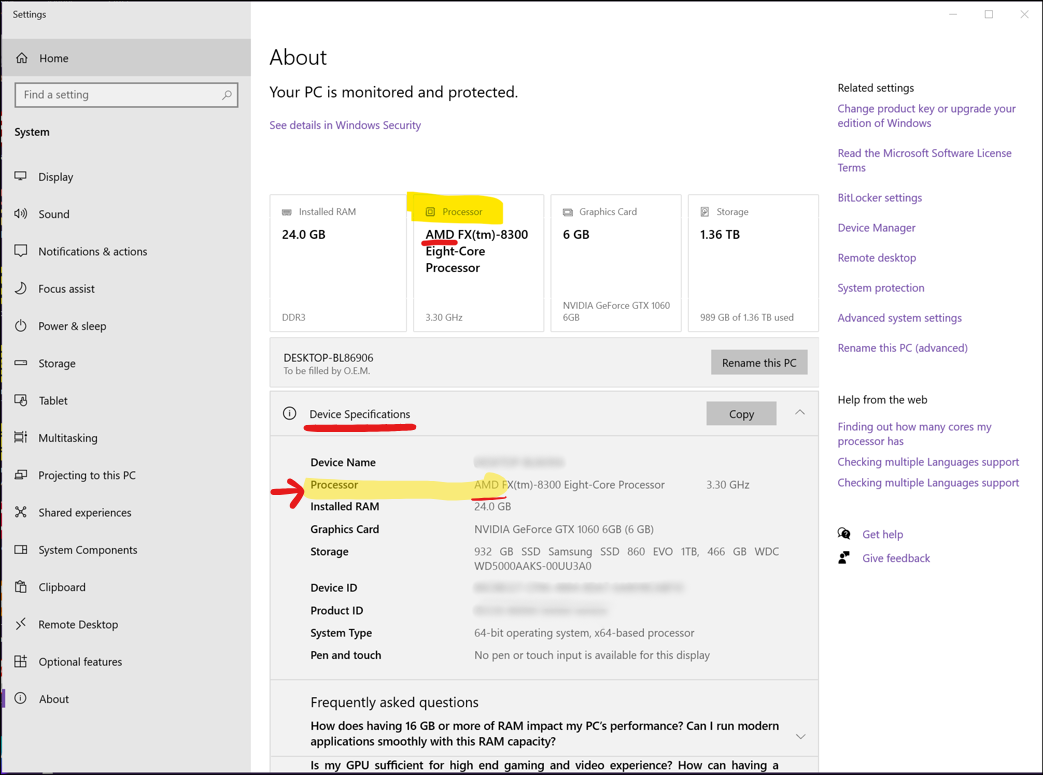
In this example, the processor is “AMD”.
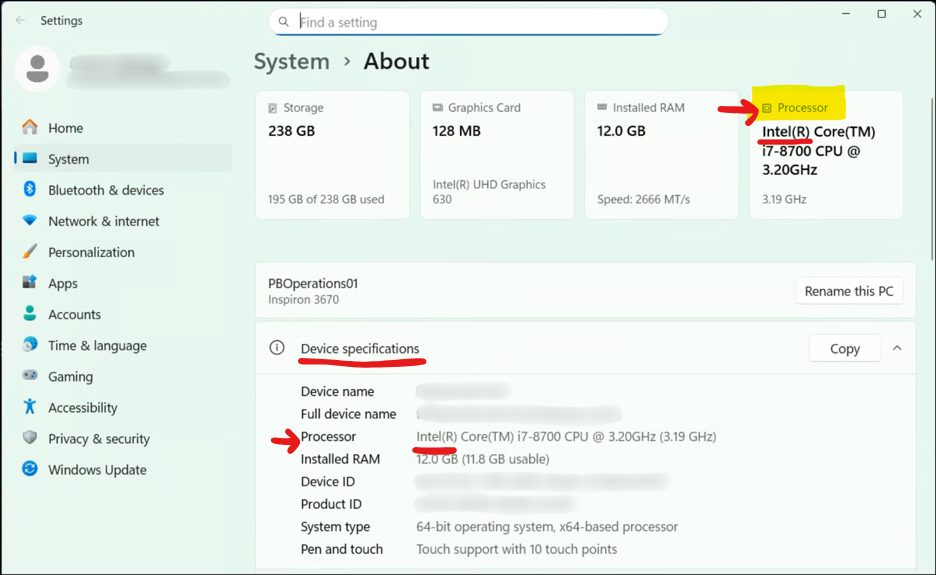
In this example, the processor is “Intel”. You will be looking for either “AMD”, “Intel” or “ARM”.
Back in the Affinity window, select the appropriate Windows download for your computer: Windows (Intel/AMD) or Windows (ARM).
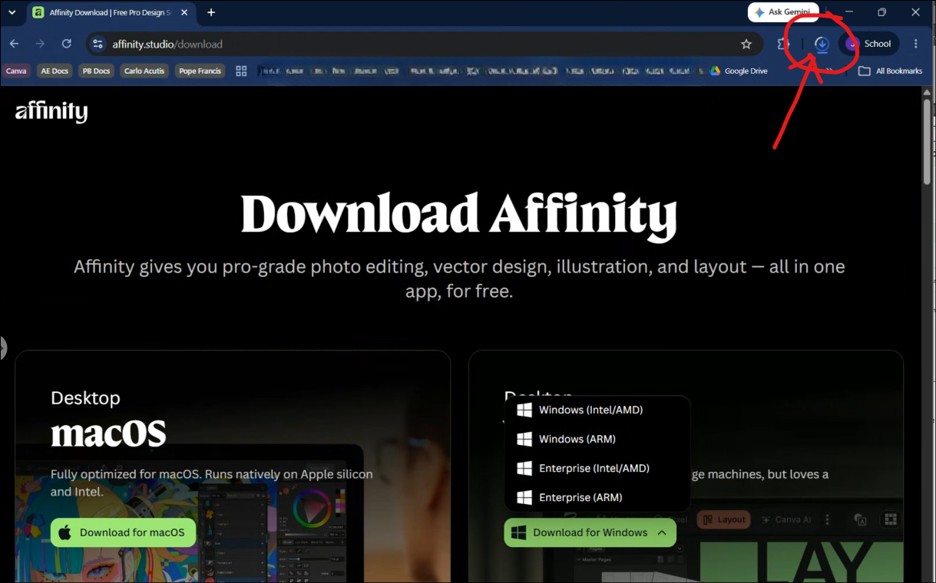
The Affinity software will now download to your computer.
Step 4: Install and open Affinity
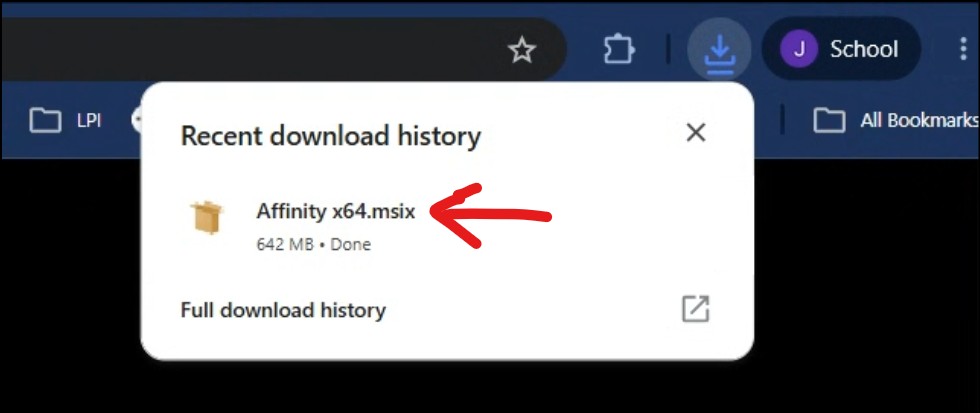
When the download is complete, click on the downloaded file to install Affinity
A popup window will appear titled “Install Affinity?” Click “Install”
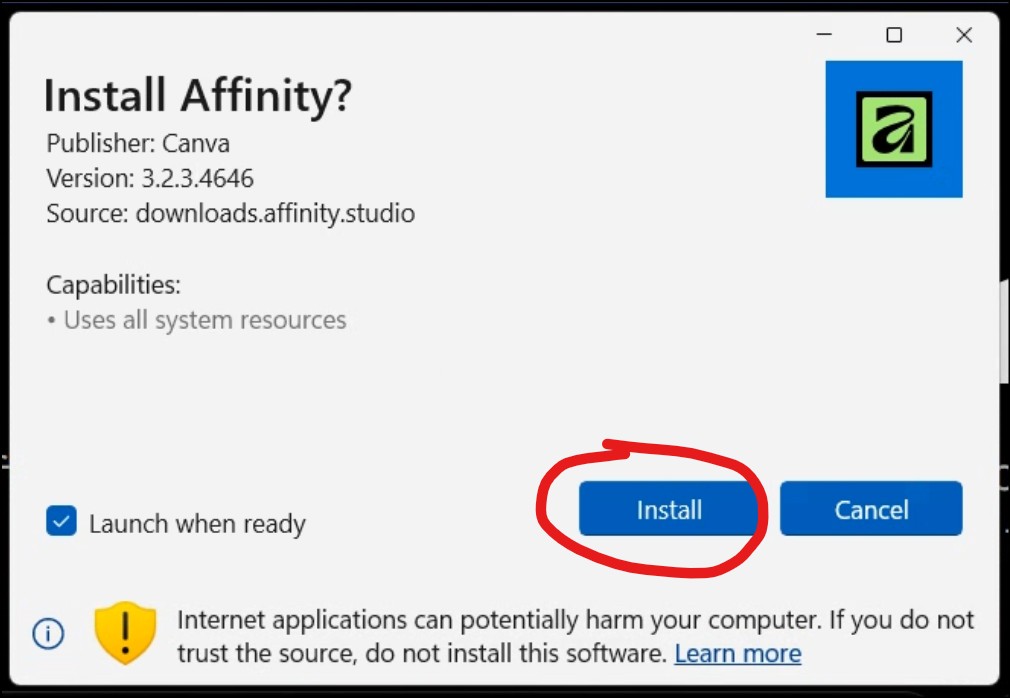
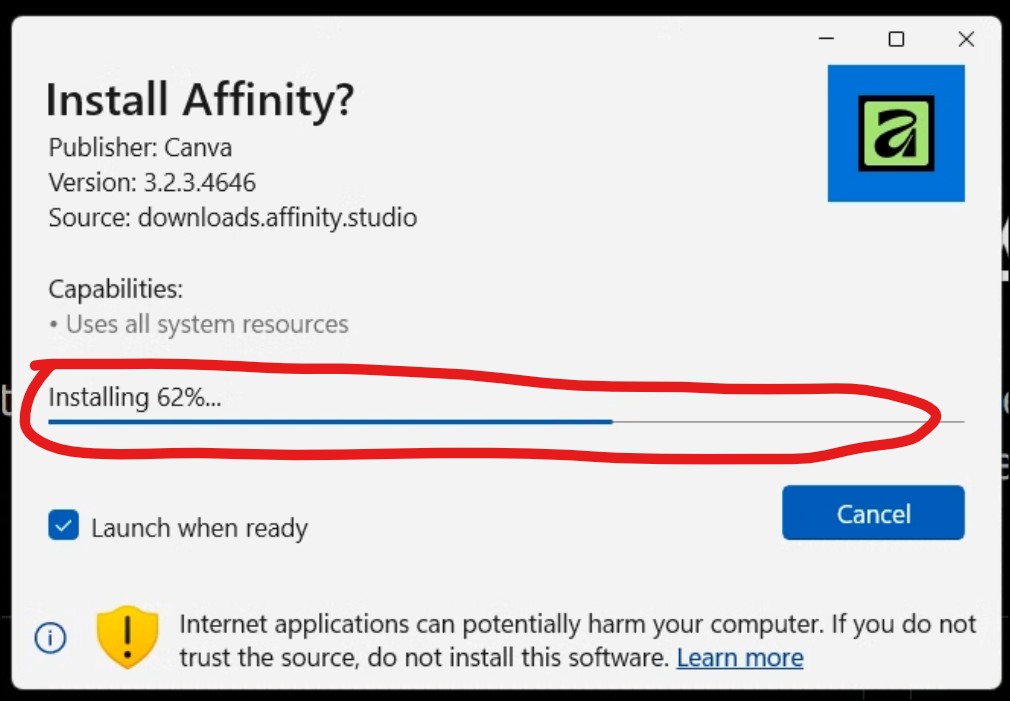
The install will begin showing its progress
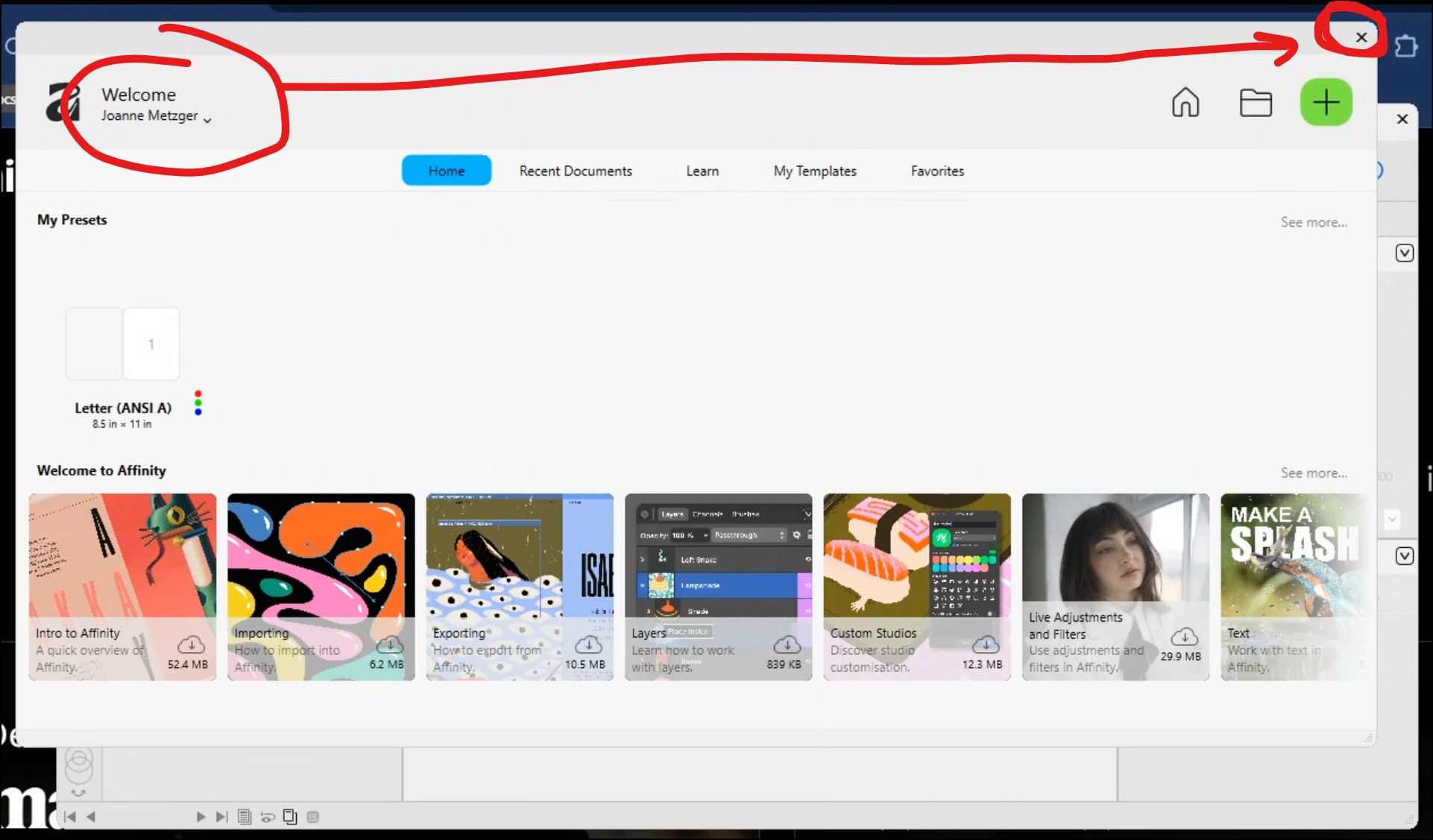
When the installation is complete, Affinity will launch. You will see the welcome screen. The Welcome screen has a number of tutorials, but some of these are on design tools that are not needed for creating your bulletin. We recommend simply closing the Welcome screen by clicking on the “X” in the upper right corner.
Behind the Welcome screen is the Affinity application. Congratulations, you have Affinity installed and running on your computer!
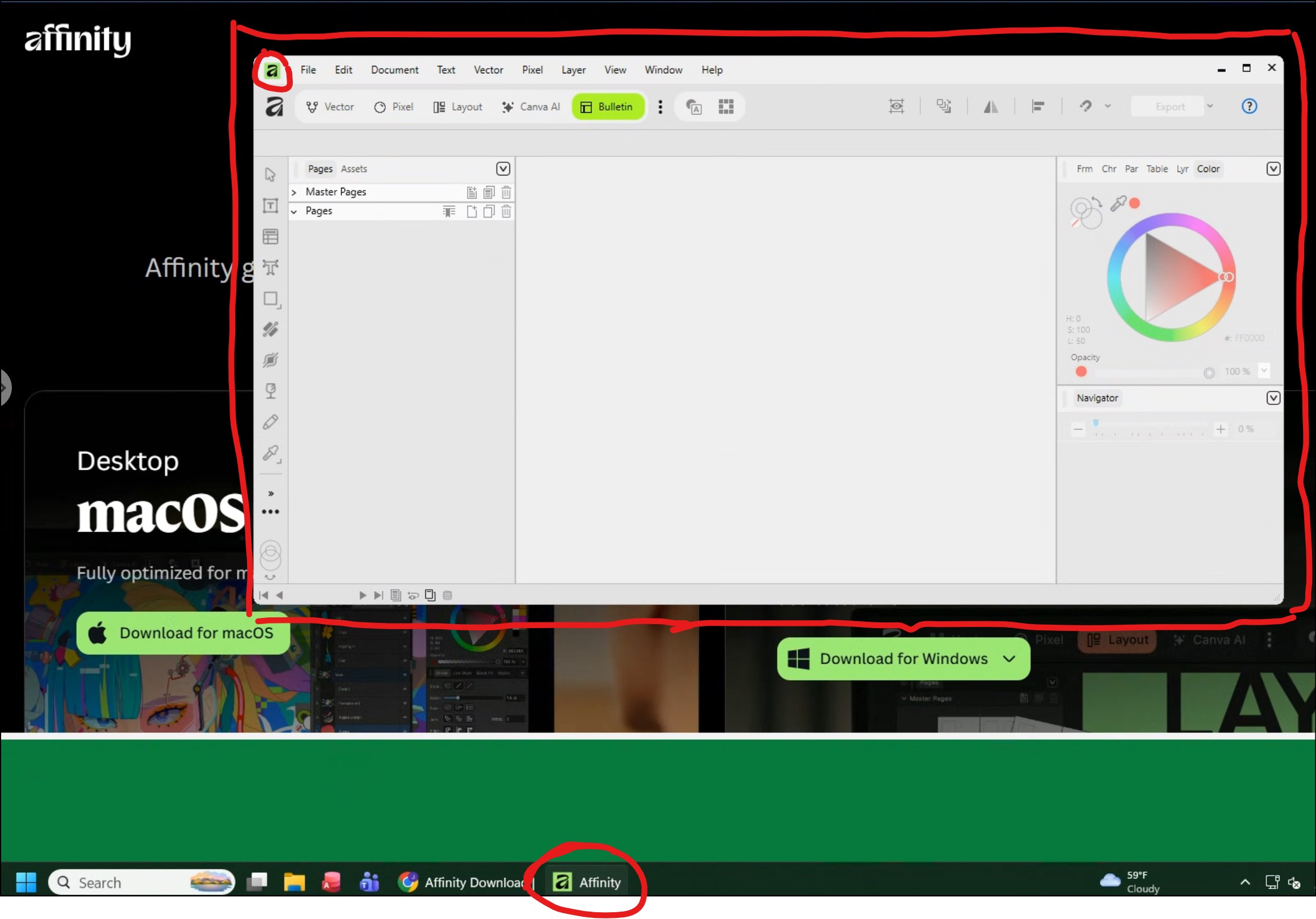
In this screenshot the Affinity application is highlighted with a red box around it. You can identify Affinity by the stylized “A” in a small lime green box in the upper left corner. The Affinity app is also pinned to the Windows taskbar.
You can now close the Affinity Download browser tab. It is no longer needed.